8 Signs Your Computer Is Hacked and What to Do First
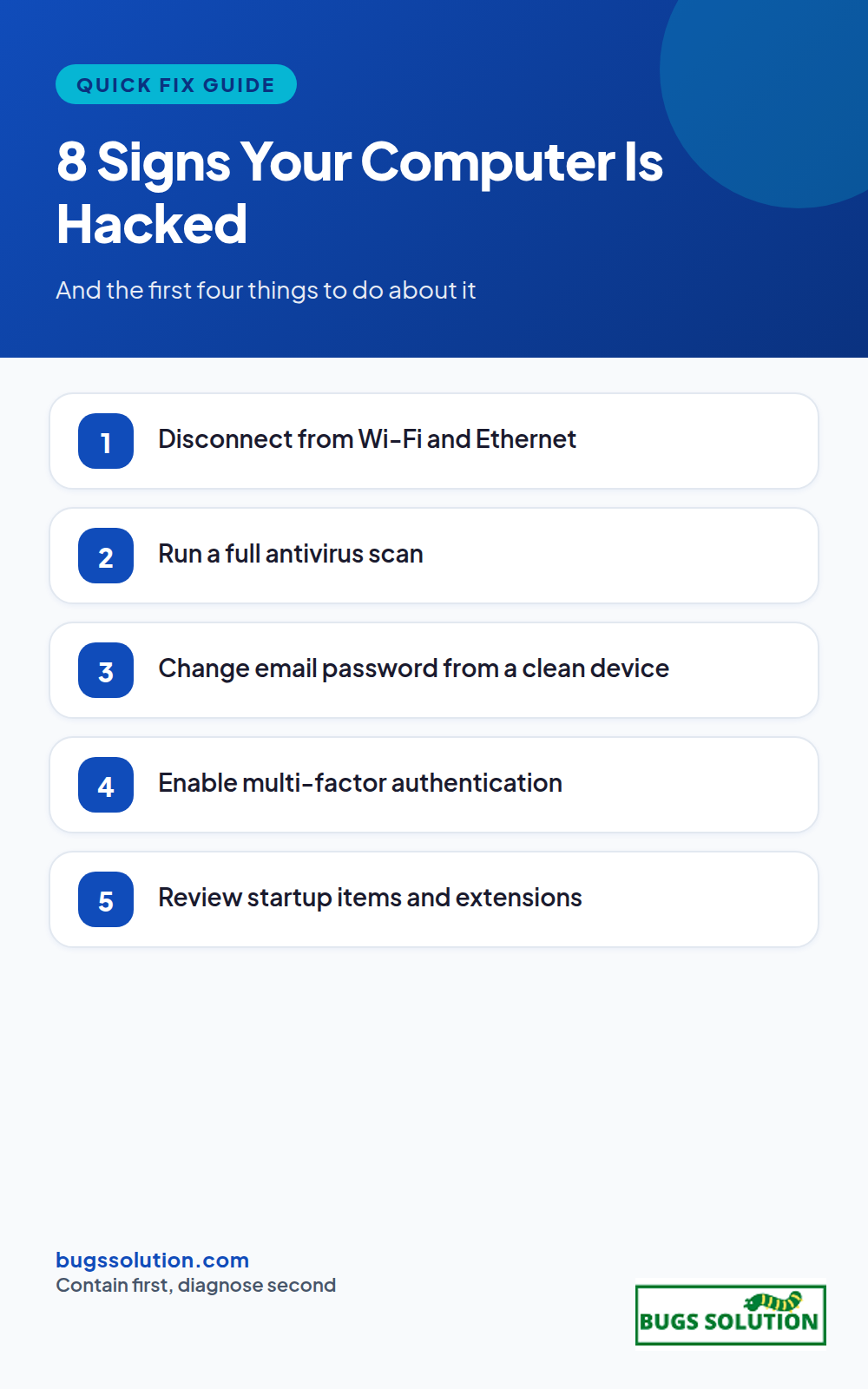
If you suspect your computer is hacked, disconnect it from the network, run a full antivirus scan, change your most important passwords from a different clean device, and enable multi-factor authentication. Those four steps…
If you suspect your computer is hacked, disconnect it from the network, run a full antivirus scan, change your most important passwords from a different clean device, and enable multi-factor authentication. Those four steps contain the damage while you work out what actually happened.
Not every scary symptom means an intrusion. Pop-ups, slow performance, and odd browser behavior also come from malware, unwanted extensions, or plain misconfiguration. The goal of this guide is to separate real compromise from ordinary bugs so you respond at the right intensity.
Eight signs worth taking seriously
1. Passwords or accounts change without you
Password reset emails you never requested, logins from cities you have never visited, or settings you did not alter are the clearest signals. Treat these as confirmed account takeover until proven otherwise.
2. Antivirus or firewall turns itself off
Many real threats disable security tools first. If you cannot re-enable them, boot into Safe Mode and run a scan from there, or use a second-opinion scanner from a USB drive on a known-clean machine.
3. Unknown programs start with Windows or run in the background
Check Task Manager or Activity Monitor for entries you do not recognize, especially ones with odd publisher names. Note the file path before you delete anything; you may need it later for cleanup or a support ticket.
4. Browser home page, search engine, or extensions change
Hijackers rewrite these settings to redirect your traffic. Remove unknown extensions, reset browser settings, and check that your default search engine is the one you chose.
5. Ransom notes or encrypted files
If files have new extensions and a ransom note appears, disconnect the machine immediately from all networks, including Wi-Fi. Do not pay. Restore from a backup that predates the infection, and scan the restored files before reopening them.
6. Unexpected network activity or large uploads
Data-cap warnings, fans spinning hard while idle, or unknown devices on your router’s client list all deserve a look. On the router admin page, list connected devices and disconnect anything you do not recognize.
7. Pop-ups claiming your computer is infected
Full-screen warnings that demand a phone call are scareware, not Microsoft or Apple. Close the browser with Task Manager if the window will not close, then run a real scan. Never call the number on the screen.
8. Friends receive messages you did not send
Account takeover often shows up first in someone else’s inbox. Change that account’s password from a clean device, sign out all sessions, and enable multi-factor authentication before messaging anyone back.
Unplug Ethernet or turn off Wi-Fi. This stops data exfiltration and prevents lateral movement to other devices on your network. For ransomware, stay offline until cleanup is complete.
Step 2: Scan from a trusted state
Update your antivirus definitions and run a full scan. Follow up with a second-opinion tool from a different vendor; one engine misses what another catches. Quarantine anything flagged, then restart and scan again.
Step 3: Change credentials from a clean device
Use a phone or another computer you trust. Prioritize email first (it resets every other account), then banking, then everything else. Create unique passwords in a password manager rather than reusing one phrase.
Step 4: Enable multi-factor authentication
Turn on MFA for email, banking, and social accounts. An authenticator app or security key beats SMS when available. This single step blocks the majority of password-only takeovers.
Step 5: Update and patch
Install OS and browser updates immediately. Many intrusions ride known bugs that patched systems already block. For Windows specifically, our Windows shortcuts and system fixes guide shows the same careful, step-by-step approach to system-level changes.
Step 6: Check for persistence
Review startup items, scheduled tasks, and browser extensions. Remove anything you did not install. If you are not sure, search the exact file name before deleting; some legitimate tools look unfamiliar.
Rule out the lookalikes
Slow performance, random crashes, and odd pop-ups also come from ordinary malware, adware, or a failing drive. The structured way to tell them apart is the same method we use for production bugs in bug fixing tips and best practices: reproduce the symptom, note when it happens, change one variable, and verify. If the problem disappears after removing an extension and no accounts were touched, you likely had unwanted software rather than an intrusion.
Certificate and clock errors can also mimic compromise warnings in the browser. If a site claims your connection is insecure only on one network, read our fix for ERR_SSL_VERSION_INTERFERENCE before assuming the worst.
After the incident
Keep a short written timeline: what you saw, when you disconnected, what the scan found, and which passwords you changed. If you must involve law enforcement or an employer, that log is the evidence they will ask for. Then schedule a monthly check of MFA status, backup integrity, and update settings so the next scare stays a scare.
If two or more signs appear together, work in this order and do not skip ahead. Disconnect from Wi-Fi or unplug Ethernet to stop further outbound activity. Change passwords from a different, known-clean device, starting with email (password reset flows run through email) then financial accounts. Enable two-factor authentication on email first. Then run the full scan in step order. Reconnect only after the scan completes and the critical passwords are rotated.
Do not wipe the machine before you have copied anything you need for a police report or insurance claim if money or identity data is involved; document what you saw (screenshots of the alert, times, accounts affected) from a phone if the machine itself is suspect. If the signs point at account takeover rather than device compromise (password reset emails you did not request, logins from unknown cities), the fix is account-side: rotate credentials, review recovery methods, and check active sessions for logouts you did not perform.
Hey,
This is Namrata Shah and I am a professional blogger. I am a professional blogger since 4 years and have keen interest to research about different bugs like windows, software bugs, exceptions handling, programming bugs, and so on.
If your device shows Wi-Fi connected but no internet access, the break is between your router and the wider web, not between your device and the router. Work…
If you are wondering whether Google is down, check Google's own status dashboard and an independent outage tracker, then test a second device on a different network. That…