If Gmail is not sending, the cause is usually one of four things: a Google service outage, a full outbox or storage quota, a browser extension or cached session, or a temporary account suspension.…
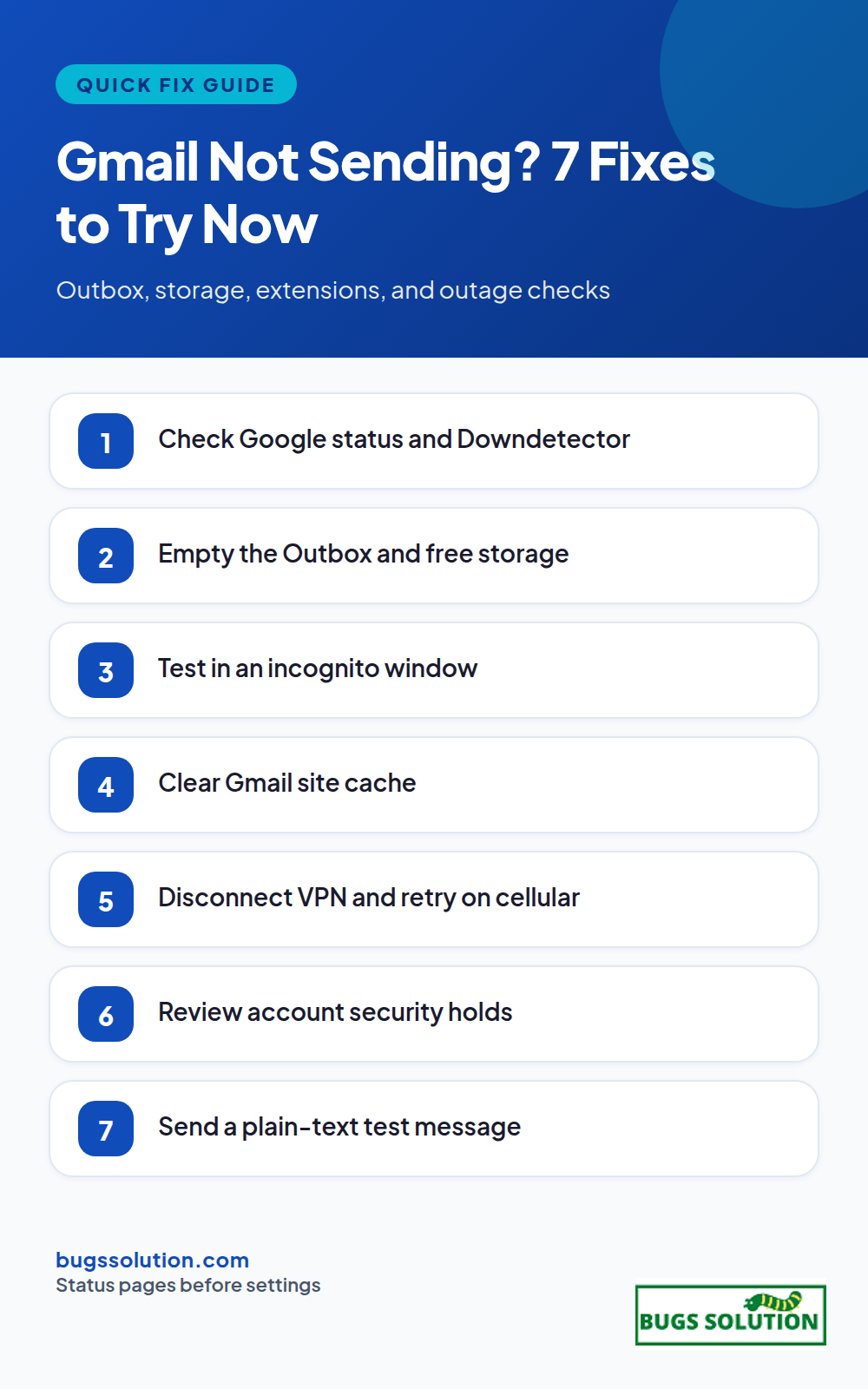
If Gmail is not sending, the cause is usually one of four things: a Google service outage, a full outbox or storage quota, a browser extension or cached session, or a temporary account suspension. Work through the checks below in order and you will know within a few minutes whether to wait out an outage or fix a local setting.
Is Gmail down, or is it just you?
Open Google’s Workspace status dashboard and Downdetector’s Gmail page. If both show elevated reports, sending failures are Google-side and your settings are fine. Wait for the incident to clear, then send a test message. Status pages update faster than social media, so trust them over rumors.
If status pages are clean, the problem is local or account-specific. A broken path to Google’s servers can also masquerade as a Gmail bug; the same connectivity logic in our internet speed guide explains why a working Wi-Fi signal does not prove you can reach Gmail at all.
Fixes that work when Gmail is not sending
1. Check the outbox and storage quota
Open the Outbox label. Stuck messages there usually fail on a large attachment or a bad recipient address. Delete or resend them. Next, open Settings and look at the storage meter at the bottom of the page. A full account blocks both sending and receiving until you free space or upgrade. Empty Trash and Spam, and search for old messages with large attachments.
2. Send from another browser or incognito window
Extensions such as ad blockers, privacy tools, and mail trackers break Gmail’s compose window more often than people expect. Open an incognito window with extensions disabled and try again. If it works there, disable extensions one by one in your normal profile until you find the culprit.
3. Clear the Gmail cache and reload
In Chrome, click the padlock in the address bar, choose Cookies and site data, and remove Gmail data. Or clear cookies for mail.google.com only, then sign in again. For the mobile app, clear cache in system settings (this does not delete mail on Google’s servers). A corrupted cached session is the same class of fault we cover when fixing ERR_SSL_VERSION_INTERFERENCE in Chrome.
4. Check your connection and VPN
Try cellular data instead of Wi-Fi, or a different network entirely. If Gmail works on cellular but not on your usual network, the router, ISP, or a VPN is interfering. Disconnect the VPN and retest. When you rely on a VPN daily, VPN split tunneling shows how to route only the apps that need it while leaving mail traffic direct.
5. Look for account security holds
Google temporarily restricts accounts after unusual activity, which often appears right after an outage when sessions re-authenticate in bulk. Open the security checkup page from your Google Account, review recent activity, and unlock the account if prompted. Change the password only if you see access you do not recognize.
6. Verify the recipient address
A single typo, a full mailbox on the other side, or a server that rejects large messages will bounce your mail while Gmail looks healthy. Send a plain-text test to your own alternate address. If that arrives, the fault is with the recipient, not your account.
7. Use an alternate route for urgent mail
For time-sensitive replies, compose from the Gmail mobile app (different code path), or forward the thread from another provider temporarily. Once Gmail recovers, move the conversation back so history stays in one place. The habit of isolating variables before changing settings is the same discipline behind bug fixing tips and best practices.
What to do after an outage ends
When Google marks the incident resolved, send a test message both ways. Watch the Outbox for a few minutes; delayed mail often flushes in a burst. If you had auto-reply or forwarding rules during the outage, turn them off so replies do not double up. If sending still fails on a clean browser and a fresh network, note the exact error text and timestamp before contacting Google support or your Workspace admin.
For recurring intermittent failures that outlive any single outage, track when they happen and what else is on the network. Patterns surface faster with the logging habits in tips to avoid bugs and effective strategies.
Prevent the next send failure
Keep a secondary send path (mobile app or alternate provider) ready, review storage monthly, and audit browser extensions after every major Gmail update. Small maintenance keeps a send failure from becoming a missed deadline.
Quick answers
Why does Gmail say message sent but the recipient never gets it?+
Check your Sent folder and ask the recipient to search Spam. Large attachments and full recipient mailboxes cause silent bounces. Send a plain-text test to your own alternate address to confirm your account can deliver.
Does clearing Gmail data delete my emails?+
No. Clearing browser cookies or app cache only removes local session data. Mail lives on Google servers and re-syncs when you sign in again.
Can an extension stop Gmail from sending?+
Yes. Ad blockers, privacy extensions, and mail trackers regularly break the compose window. Test in an incognito window with extensions off before changing any account settings.
How long does a Google outage usually last?+
Most Gmail incidents clear within an hour. Broader Workspace events can run longer; watch the status dashboard timeline rather than social posts for an accurate end time.
Hey,
This is Namrata Shah and I am a professional blogger. I am a professional blogger since 4 years and have keen interest to research about different bugs like windows, software bugs, exceptions handling, programming bugs, and so on.
If you are wondering whether Google is down, check Google's own status dashboard and an independent outage tracker, then test a second device on a different network. That…
If Apple Pay is not working, first confirm whether Apple's payment services are down, then check the basics on your device: default card, region settings, and a quick…
If iCloud or the App Store is down on your iPhone, iPad, or Mac, the fix usually starts with Apple's system status page, not your device. Sign-in failures…