Internet Outage? How to Tell If It Is Your ISP or Router
If the internet is out, the fastest way to tell whether it is your ISP or your router is to check whether every device on your network is affected, then compare your findings against…
If the internet is out, the fastest way to tell whether it is your ISP or your router is to check whether every device on your network is affected, then compare your findings against your provider’s outage map. One device down points to that device; every device down points to the router, modem, or the line coming into your home.
Start with the one-device-versus-everyone test
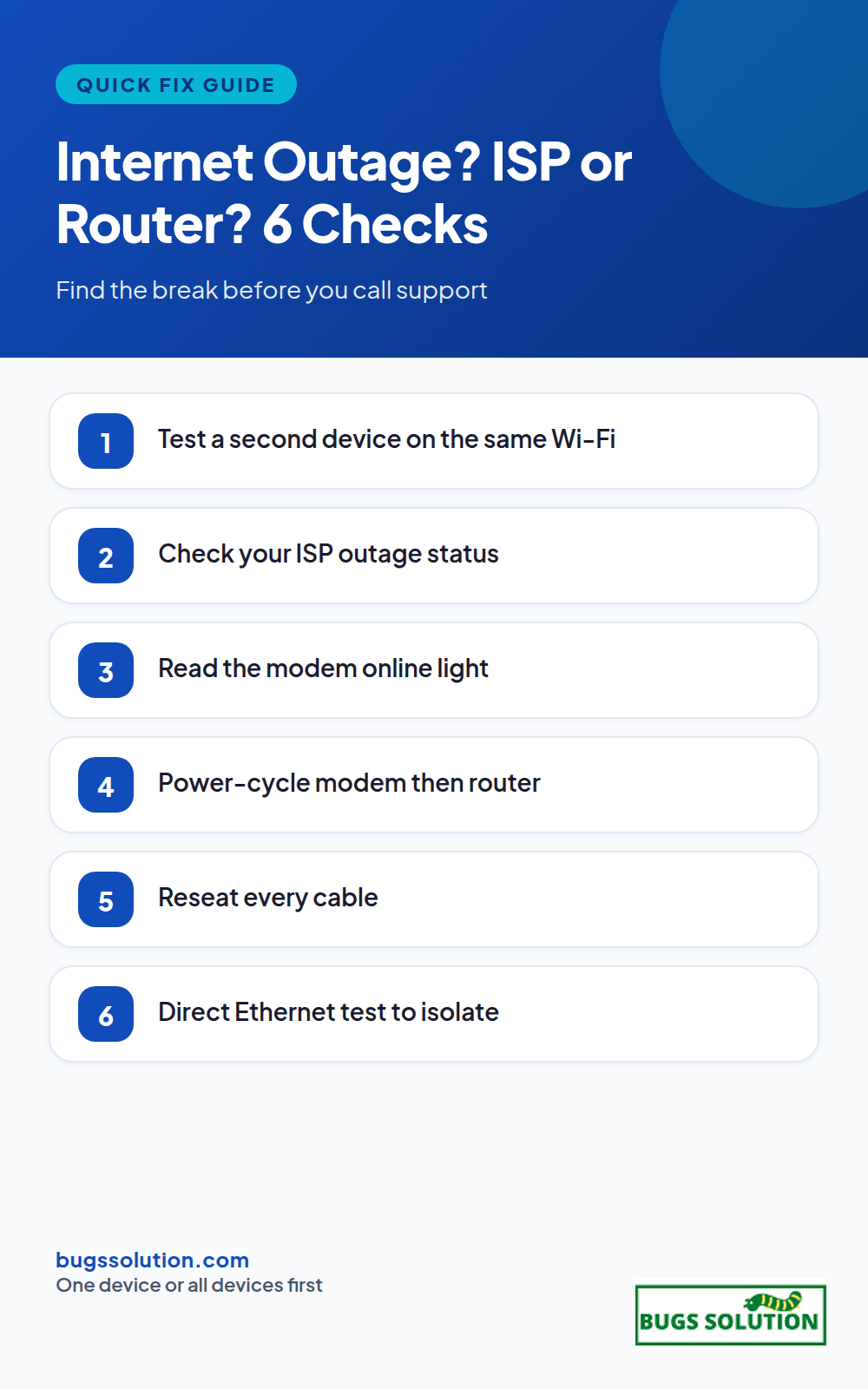
Grab a second device on the same Wi-Fi network, such as a phone, and try to load a site. If the phone works and the laptop does not, the fault is on the laptop: its adapter, DNS settings, proxy, or a stuck network stack. If nothing connects, continue down this page toward router and ISP checks.
This split is the single most useful diagnostic in home networking. It is also the backbone of our walkthrough on internet speed and connection quality, which explains why full Wi-Fi bars only prove the link to your router, not the path beyond it.
Is it your ISP? Three quick confirmations
1. Check your provider’s outage status
Open your ISP’s app or status page, or search “ISP name outage” and look at recent reports. A quick look at Downdetector shows whether other customers in your area report the same failure at the same time. If reports are spiking, wait for repairs; no local change will restore service until the upstream issue clears.
2. Look at your modem lights
The modem is the box where the provider’s line enters your home. If its online or WAN light is off, red, or blinking abnormally while power is solid, the problem is upstream of your router. Note the light pattern before you restart anything; support will ask for it.
3. Test with a direct connection
If you have a laptop with an Ethernet port, plug it straight into the modem (power-cycle the modem first, then wait for lights to stabilize). If the direct connection also fails while the modem lights look wrong, the ISP line is the fault. If the direct connection works, the router is the suspect instead.
Is it your router? Fixes in order
1. Power-cycle modem and router in the right order
Unplug the modem, wait 30 seconds, plug it in, and wait for its lights to stabilize. Then do the same for the router. Order matters: bringing the router up before the modem is ready leaves it holding a stale WAN connection. This single sequence resolves more outages than any other step.
2. Check cables and power
Reseat the coaxial or fiber cable into the modem, the Ethernet cable between modem and router, and both power bricks. A half-seated cable produces exactly the “connected but no internet” symptom without any obvious damage. Replace any cable that looks pinched or corroded.
3. Forget and rejoin the Wi-Fi network
On the affected device, forget the network, then rejoin and enter the password fresh. Corrupted saved connection data keeps a device stuck on a broken profile even after the router recovers. The same reset logic applies across platforms and is part of tips to avoid bugs and effective strategies.
4. Release and renew the IP, flush DNS
On Windows, open Command Prompt as administrator and run ipconfig /release, then ipconfig /renew, then ipconfig /flushdns. On Mac, renew the DHCP lease in System Settings > Network > TCP/IP. A stale lease or poisoned DNS cache can survive a router reboot and keep one device offline.
5. Check for a VPN or proxy in the way
A VPN that lost its server will silently block all traffic while the Wi-Fi icon stays full. Disconnect it and retest. If you normally rely on one, VPN split tunneling shows how to keep critical apps direct while the rest of your traffic stays protected.
6. Update router firmware, then factory-reset only as a last resort
Outdated firmware causes intermittent drops that look like ISP faults. Check the router admin page for an update. If you must factory-reset, write down your Wi-Fi name, password, and any port forwards first; reconfiguring from scratch without notes turns a ten-minute fix into an hour.
When to call support
Call the ISP when modem lights stay wrong after a clean power-cycle, when Downdetector shows a regional incident, or when a direct Ethernet connection also fails. In the US, the FCC’s broadband troubleshooting guide lists the questions providers must answer during an outage. Have ready: your account number, the modem light pattern, the time the outage started, and whether neighbors on the same street report the same issue. If the ISP says the line is fine but every device still fails, escalate with your own test results rather than repeating “it does not work.”
For intermittent drops that come and go rather than a full outage, capture timestamps for a few days. Patterns are easier to spot with the logging habits in bug fixing tips and best practices.
Prevent the next dead network
Keep a printed note of your admin password and ISP support number, replace cables every few years, and reboot the router monthly. When the network does fail, you will already know whether to wait, re-cable, or call.
Time-box each isolation step
Give every step a clock so the diagnosis does not sprawl. Power-cycling modem then router: three minutes including boot. Phone hotspot test: two minutes. Second computer or guest network: five minutes. If none of those move the needle in fifteen minutes total, the fault is likely upstream of your equipment or inside a single device’s configuration, and the next move is the ISP call with your timeline ready.
Write down each result as you go: “hotspot OK, guest network fail” already tells support that the modem path and Wi-Fi radio are healthy while the main LAN is not. Support scripts run faster against a short log than against a narrative, and a timeline that shows when the fault started helps them match it to known regional events.
Hey,
This is Namrata Shah and I am a professional blogger. I am a professional blogger since 4 years and have keen interest to research about different bugs like windows, software bugs, exceptions handling, programming bugs, and so on.
If your device shows Wi-Fi connected but no internet access, the break is between your router and the wider web, not between your device and the router. Work…
If you suspect your computer is hacked, disconnect it from the network, run a full antivirus scan, change your most important passwords from a different clean device, and…
If you are wondering whether Google is down, check Google's own status dashboard and an independent outage tracker, then test a second device on a different network. That…