Windows Update error 0x80070057, “the parameter is incorrect,” usually means a corrupted update cache, a damaged system file, or not enough free space on the system drive. Run the Windows Update troub We start from the exact error text and work outward, so you change one setting at a time and can undo any step that does not help.leshooter first, then reset the update components, then repair system files with DISM and SFC. Most installs succeed after one of those three steps.
What 0x80070057 actually means
Windows reports this code when a process passes an invalid or out-of-range parameter to a system function. During updates it most often appears after an interrupted download left the SoftwareDistribution cache inconsistent, or when a system file the updater depends on is damaged. It is not a hardware failure, and it is safe to fix with the steps below.
The same “capture the exact error, then change one variable” discipline applies to any stubborn Windows fault; it is the core of bug fixing tips and best practices.
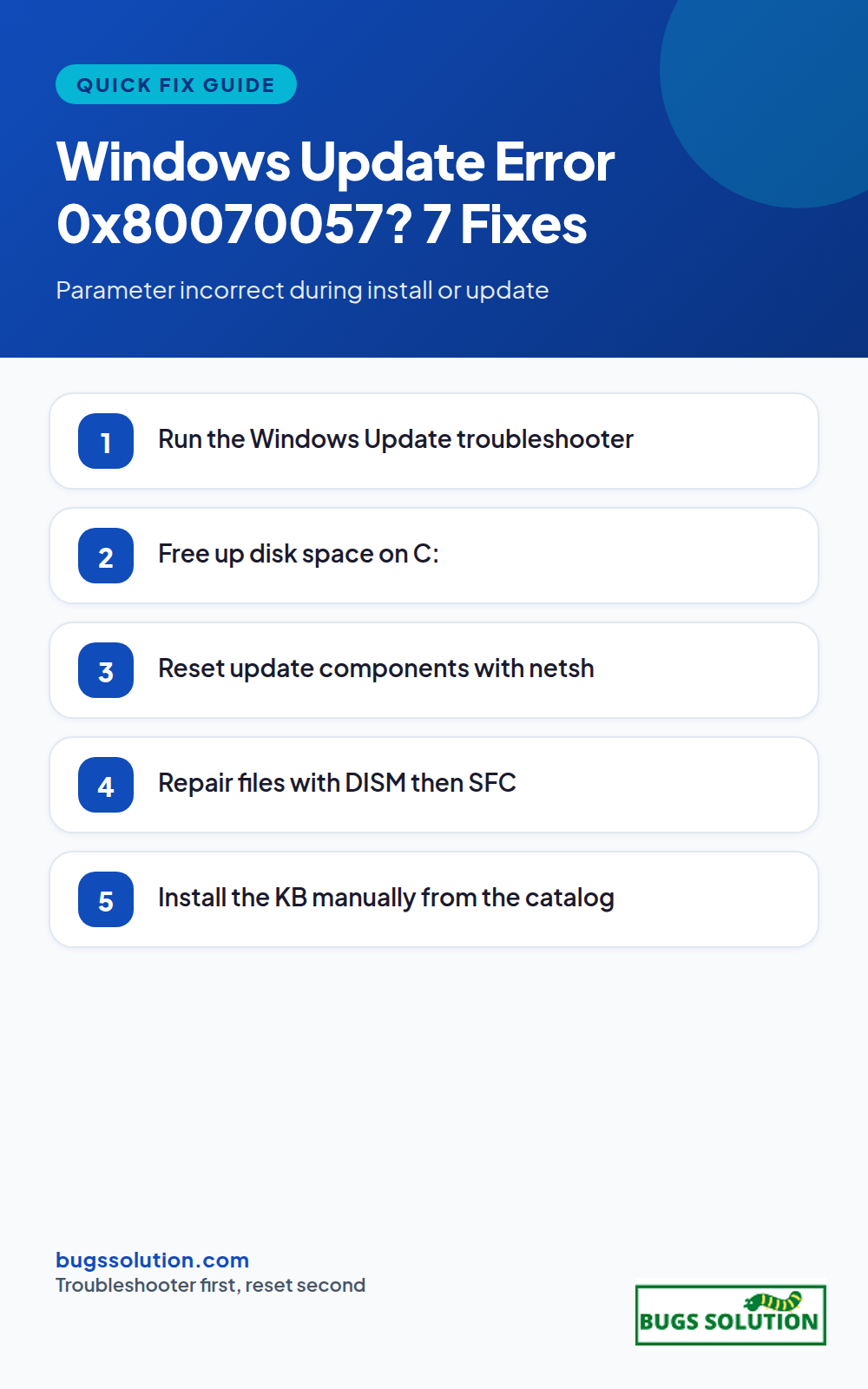
On Windows 11: Settings > System > Troubleshoot > Other troubleshooters, then run the Windows Update troubleshooter. On Windows 10: Settings > Update & Security > Troubleshoot > Additional troubleshooters. Apply any repairs it suggests, restart, and check for updates again. This clears the most common cache and permission issues automatically.
2. Check free disk space
Updates need working room beyond the minimum Windows requires. Open Settings > System > Storage and confirm at least 15 to 20 GB free on C:. Empty Temporary files, clear the Recycle Bin, and uninstall apps you no longer use. If space is critically low, our Windows system fixes guide shows the same careful approach to system-level changes; for space specifically, Settings > System > Storage > Temporary files is the safest place to start.
3. Reset Windows Update components
Open an elevated Command Prompt and run these one at a time, then restart:
net stop wuauserv net stop cryptSvc net stop bits net stop msiserver ren C:\Windows\SoftwareDistribution SoftwareDistribution.old ren C:\Windows\System32\catroot2 catroot2.old net start wuauserv net start cryptSvc net start bits net start msiserver
Renaming rather than deleting keeps a backup you can restore. After restart, run Windows Update again.
Run DISM first so SFC has a healthy source to copy from. Both scans take ten to twenty minutes; leave the window open. Restart when they finish and retry the update.
5. Install the update manually
If a specific cumulative update keeps failing, note its KB number from the update history, download the standalone installer from the Microsoft Update Catalog, and run it directly. Manual installs bypass the component that often throws 0x80070057.
6. Check disk errors
Run chkdsk C: /f /r from an elevated prompt and allow the scan at next reboot. File system corruption behind the cache can make every update fail with the same code. If chkdsk reports bad sectors, back up important data before continuing.
7. Clean boot and retry
Press Win + R, type msconfig, open the Services tab, hide Microsoft services, disable everything else, and disable startup items in Task Manager. Restart and try the update. If it succeeds, re-enable third-party services one group at a time to find the conflict, usually security software that hooks the updater.
When 0x80070057 appears outside Windows Update
The same code shows up in backup tools, disk management, and app installs when a path or parameter is wrong. The fix path is similar: verify free space, repair system files, and isolate the failing app by testing the same action in a second user account. For patterns that repeat across restarts, log the exact command and timestamp so support sees a trail rather than a single screenshot.
Prevent it from coming back
Keep 20 GB free on the system drive, avoid force-shutting down during updates, and run DISM plus SFC after any interrupted install. Monthly disk cleanup prevents most repeat incidents before they start. For related Windows health habits, see tips to avoid bugs and effective strategies.
How to tell which fix you need
Read the exact error text before changing anything. If the code appears only when Windows Update runs, stay in the update workflow below. If the same code appears when you install an MSI or copy files to an external drive, the disk or file system is the more likely fault and DISM/SFC will not help. Note the time of the failure and whether it repeats after a reboot; a code that never returns after one clean reboot was a transient lock, not a persistent configuration problem.
Work the list in order and stop at the first success. Steps 1 through 3 are reversible settings changes and take a few minutes together. Step 4 (DISM then SFC) can take twenty minutes or more on a slow disk, so start it when you can leave the machine alone. Do not run DISM and SFC at the same time; SFC depends on the component store that DISM repairs.
If you are on a metered connection or a corporate machine with update policies, check with your admin before resetting update components. Group Policy can reinstall the blocked state the moment you reboot, which looks like “the fix did not work” when it actually did. For the general habit of isolating a fault before changing settings, see our bug fixing tips and best practices.
Hey,
This is Namrata Shah and I am a professional blogger. I am a professional blogger since 4 years and have keen interest to research about different bugs like windows, software bugs, exceptions handling, programming bugs, and so on.
If your device shows Wi-Fi connected but no internet access, the break is between your router and the wider web, not between your device and the router. Work…
If you suspect your computer is hacked, disconnect it from the network, run a full antivirus scan, change your most important passwords from a different clean device, and…