A printer showing offline on Windows 11 is almost always a connection or queue problem, not a dead printer. Uncheck “Use Printer Offline,” clear the print queue, restart the print spooler, and confirm the printer is on the same network as your PC. Those four steps resolve most offline states in a few minutes.
Why the printer says offline when it is on
Windows tracks printers by port and connection state. When the port stops answering, whether from a changed IP address, a dropped Wi-Fi link, or a hung spooler, Windows marks the printer offline even though the hardware is powered and ready. The status is a guess about connectivity, not a hardware diagnostic.
The same “is it one device or the whole network” question applies here: if every network device lost connectivity, fix the network first. Our guide to internet speed and connection quality covers how to spot a network-wide break before chasing peripherals.
Fixes in order
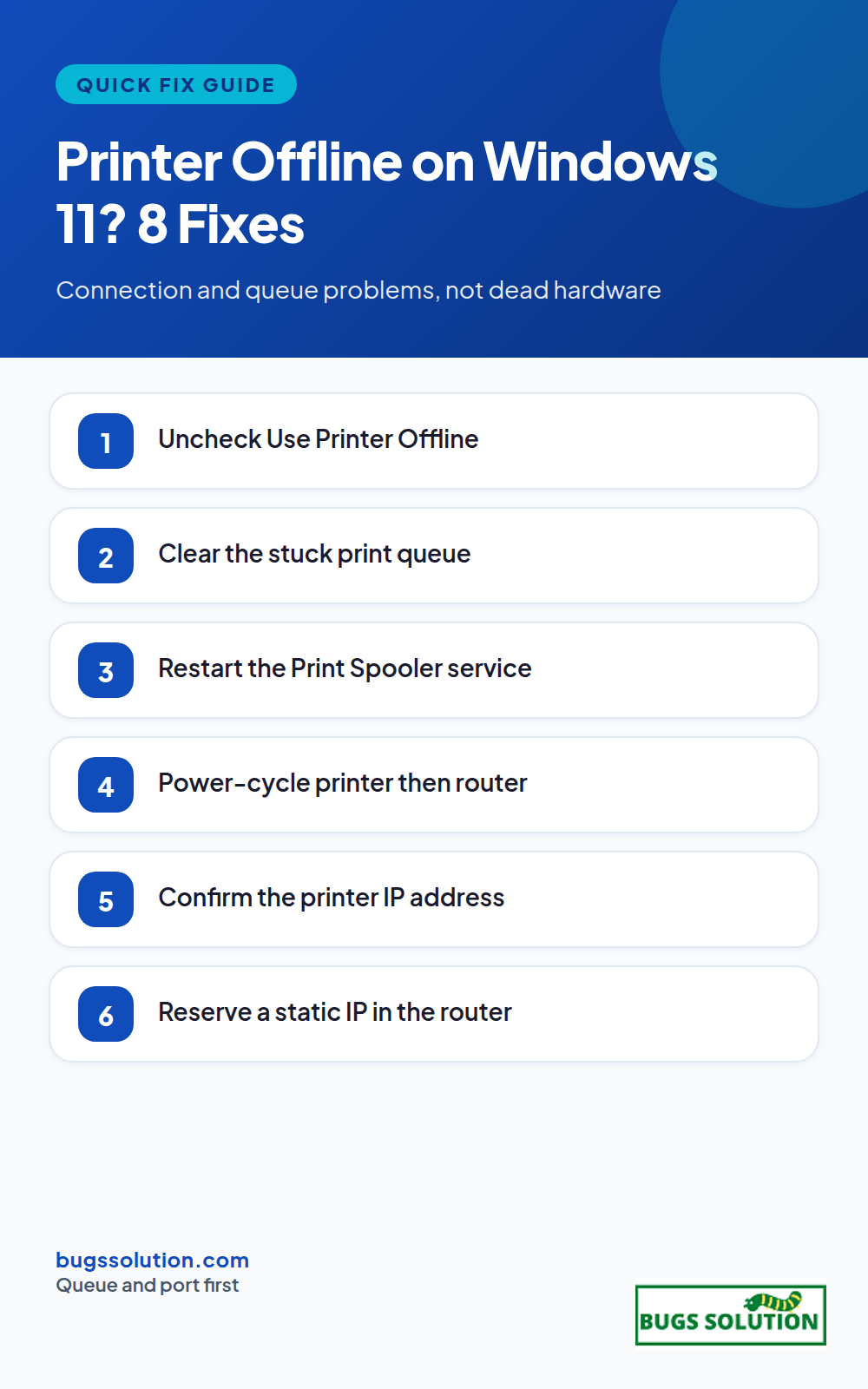
1. Turn off “Use Printer Offline”
Open Settings > Bluetooth & devices > Printers & scanners, select your printer, open the queue, click Printer in the menu bar, and uncheck Use Printer Offline if it is ticked. This single checkbox causes a surprising share of “offline” reports after a failed print job.
2. Clear the print queue
In the same queue window, cancel all pending jobs. A stuck job at the head of the queue blocks everything behind it and can leave the printer in a faulted state. If jobs will not cancel, restart the spooler first (next step), then clear again.
3. Restart the Print Spooler service
Press Win + R, type services.msc, find Print Spooler, right-click and Restart. Set Startup type to Automatic if it keeps stopping. The spooler is the Windows service that owns all print jobs; when it hangs, every printer attached to it looks offline.
4. Power-cycle in the right order
Turn the printer off, restart your router if the printer is networked, wait for the router to finish, start the printer, then restart the PC. Order matters because the printer must rejoin the network before Windows probes the port.
5. Verify the connection path
USB: unplug and replug into a different port, or try another cable. Wi-Fi: print a network configuration page from the printer’s own menu and confirm it holds an IP on the same subnet as your PC. If the IP changed since you installed the printer, Windows is still probing the old address.
6. Set a static IP or DHCP reservation
In your router’s admin page, reserve the printer’s current IP address for its MAC address. A printer whose address changes with every reboot will keep dropping offline after power cuts. This is the most durable fix for recurring wireless offline states.
7. Update or reinstall the driver
Download the latest driver from the printer manufacturer’s support site rather than trusting Windows Update alone. Remove the old printer entry first, restart, then install fresh. A corrupted driver profile produces offline states that survive every other fix.
8. Run the printer troubleshooter
Settings > System > Troubleshoot > Other troubleshooters > Printer. It resets common queue and port problems automatically. Run it after the manual steps above so it has a clean state to work with, not before.
When the hardware is actually failing
If the printer prints a self-test page perfectly but stays offline from Windows only, the fault is software-side and one of the steps above will clear it. If the self-test fails, check toner or ink, paper path, and error lights on the panel; those are hardware issues no Windows setting will fix. Error codes on the display usually map to a specific consumable or jam in the manufacturer’s manual.
When the driver or queue keeps coming back
If offline states return after every cleanup, the pattern is usually a driver that reinstalls itself broken or a service that stops on reboot. Capture the exact time of each failure and compare notes with tips to avoid bugs and effective strategies; repeating faults almost always leave a trail once you log them. For general Windows troubleshooting structure, the same method in our non-obvious crash causes piece applies to desktop services too: find the pattern before changing settings.
Reserve the printer’s IP, keep firmware and drivers current, and print a test page after every network change. For teams that share one printer, assign one person to own the queue so canceled jobs do not pile up. The same ownership habit underpins bug fixing tips and best practices, and a short log of offline incidents will show whether the cause is the network or the device.
Confirm the port before blaming the spooler
Print a network configuration page from the printer’s own control panel and compare the IP address with what Windows has stored. Open Settings > Bluetooth > devices > Printers & scanners, select the printer, Printer properties, and check the port tab: if the port points at an old address, Windows will keep marking the printer offline no matter how many times you restart the spooler. Updating the port (or deleting and re-adding the printer so it rediscovers the current address) clears that class of fault in one pass.
USB users: swap the cable and the port before anything else. A marginal cable that half-seats produces intermittent offline states that look exactly like a network problem because the queue still shows the job as sent.
When the printer works from its panel but never from Windows, the remaining suspects are the driver profile and the spooler service. Clear the queue, restart Print Spooler, then print a test page from Printer properties > General. Success there means application-level output routing is the last layer, not the hardware.
Hey,
This is Namrata Shah and I am a professional blogger. I am a professional blogger since 4 years and have keen interest to research about different bugs like windows, software bugs, exceptions handling, programming bugs, and so on.
If your device shows Wi-Fi connected but no internet access, the break is between your router and the wider web, not between your device and the router. Work…