WiFi Connected But No Internet? 10 Fixes That Work
If your device shows Wi-Fi connected but no internet access, the break is between your router and the wider web, not between your device and the router. Work through these ten fixes in order…
If your device shows Wi-Fi connected but no internet access, the break is between your router and the wider web, not between your device and the router. Work through these ten fixes in order: check for an ISP outage, restart modem and router correctly, verify cables, then repair the affected device’s network settings.
Why “connected” does not mean “online”
Your device joining Wi-Fi only proves it can talk to the router. Traffic still has to pass from router to modem, modem to your provider, and provider out to the internet. A failure anywhere along that chain produces the same confusing icon: full bars, zero pages loading. The road-and-highway analogy in our internet speed guide covers this distinction in more detail.
Before anything else, answer one question: is it one device or every device? That single test decides whether you fix a laptop or fix the network.
Fixes when every device is affected
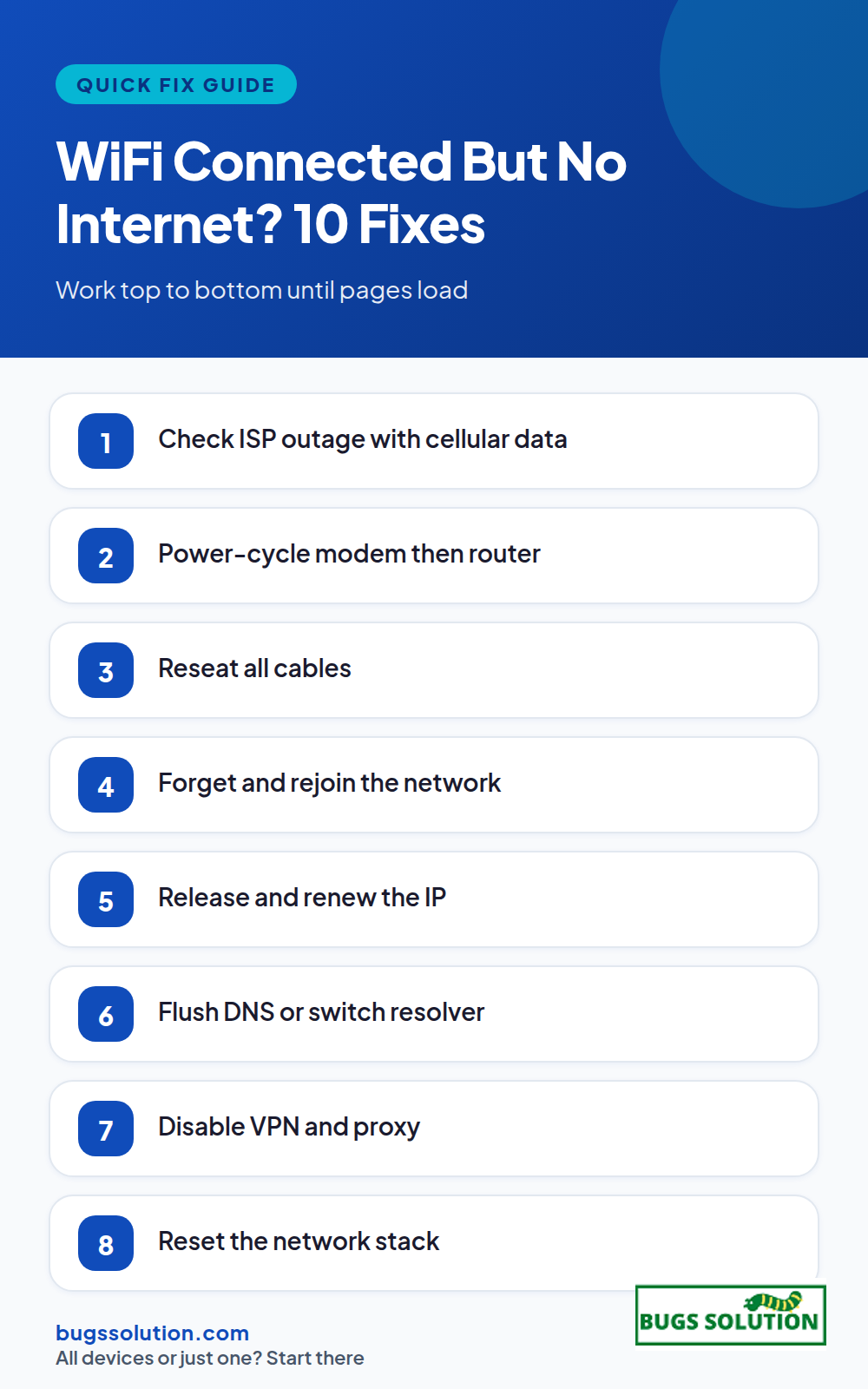
1. Check for an ISP outage
Use cellular data on your phone to open your provider’s status page or Downdetector. If neighbors report the same outage, wait it out. Local fixes cannot repair a cut line miles away.
2. Restart modem, then router, in that order
Unplug the modem, wait 30 seconds, plug it in, and wait for lights to stabilize. Repeat for the router. Bringing the router up first leaves it holding a stale WAN lease. Most households resolve “connected, no internet” at this step alone.
3. Check every cable
Reseat the line into the modem, the Ethernet cable between modem and router, and both power supplies. A loose cable produces exactly this symptom with no error message anywhere.
4. Look at the modem’s WAN or online light
If that light is off or red after a clean power-cycle, the problem is upstream. Call your ISP with the light pattern and the time the outage started. For recurring intermittent drops rather than full outages, capture a few days of timestamps; structured notes are covered in bug fixing tips and best practices.
Fixes when only one device is affected
5. Restart the device
A full reboot clears stored network state and forces a fresh association with the router. It sounds too simple, but it resolves a surprising share of single-device failures.
6. Forget the Wi-Fi network and rejoin
Corrupted saved connection data keeps a device stuck on a broken profile. Forget the network in settings, reselect it, and enter the password fresh. Do this on Windows, Mac, iPhone, or Android with the same result in mind.
7. Release and renew the IP address
On Windows, open Command Prompt as administrator and run ipconfig /release then ipconfig /renew. On Mac, renew the DHCP lease in System Settings > Network > TCP/IP. An address conflict or expired lease leaves a device “connected” with no working route.
8. Flush DNS and switch resolver
Run ipconfig /flushdns on Windows or clear the DNS cache on Mac. If pages still fail while IP connectivity works, set the resolver to 8.8.8.8 or 1.1.1.1 temporarily. DNS failures look identical to full outages because names never resolve.
9. Disable proxy and VPN, then retest
A dead VPN tunnel or a stale proxy setting blocks all traffic while the Wi-Fi icon stays full. Turn both off and reload a site. If a VPN is part of your normal setup, VPN split tunneling keeps only the apps you choose inside the tunnel.
10. Reset the network stack
On Windows, run these in an elevated prompt, one at a time:
netsh winsock reset netsh int ip reset ipconfig /flushdns
Restart after they finish. This clears corrupted Winsock and TCP/IP state that survives ordinary reboots. On Mac, create a new network location or renew the lease after removing and re-adding the Wi-Fi service.
Confirm the device is not in Airplane Mode, that Wi-Fi is actually toggled on, and that a static IP you once set has not gone stale. Check for a captive portal: open a site that forces login on hotel or cafe networks. If the login page never appears, the router may be blocking new clients; forgetting the network and rejoining usually triggers the portal again.
When to escalate
If every device fails after a correct power-cycle, modem lights stay wrong, and the ISP confirms no outage in your area, ask for a line test and a technician visit. Bring your evidence: light patterns, times, and the fact that a direct Ethernet connection also failed. Vague tickets move slowly; specific ones do not.
If the problem keeps returning only on one device, treat it as a hardware or driver issue and check the adapter in Device Manager for errors. For more on isolating stubborn, repeating faults, see tips to avoid bugs and effective strategies.
Prevent the next dead connection
Label your cables, keep router firmware current, write down your admin password, and reboot the modem monthly. When bars go full and nothing loads, you will already know the first three moves.
Prove which hop is broken
Open Command Prompt and run two commands back to back. ipconfig /all shows whether your machine holds a gateway address; a missing or 0.0.0.0 gateway means DHCP never completed and the fault is local radio or router (steps 1 through 3). ping 8.8.8.8 then ping google.com separate raw IP reachability from name resolution: IP works but name fails is DNS (step 5); both fail is routing or upstream (steps 6 and 7). Two pings and one ipconfig output narrow the list faster than restarting devices in order.
Keep the outputs if you need to involve the ISP. A gateway that looks correct, a failed ping to 8.8.8.8, and a working phone on the same Wi-Fi is a modem-side outage you can state in one sentence; support can escalate against that without re-running the same checks with you.
Hey,
This is Namrata Shah and I am a professional blogger. I am a professional blogger since 4 years and have keen interest to research about different bugs like windows, software bugs, exceptions handling, programming bugs, and so on.
If you suspect your computer is hacked, disconnect it from the network, run a full antivirus scan, change your most important passwords from a different clean device, and…
If you are wondering whether Google is down, check Google's own status dashboard and an independent outage tracker, then test a second device on a different network. That…