DNS_PROBE_FINISHED_NXDOMAIN in Chrome means the browser asked for a site’s address and got no answer: the domain name could not be resolved. The fix is usually to flush the DNS cache, switch to a reliable public DNS server, or correct a mistyped URL. Work through the steps below in order and most cases clear in under five minutes.
What the error actually says
DNS is the phone book of the internet. When you type a URL, Chrome asks a resolver to translate the name into an IP address. NXDOMAIN is the resolver’s way of saying “no such domain.” Sometimes that is correct: the site really is gone. More often your local cache, router, or ISP resolver has gone stale or is blocking the name.
The same resolver problem shows up in other network faults; the isolation logic in our internet speed guide applies here too: test another device, then another network, before blaming Chrome.
Fixes in order
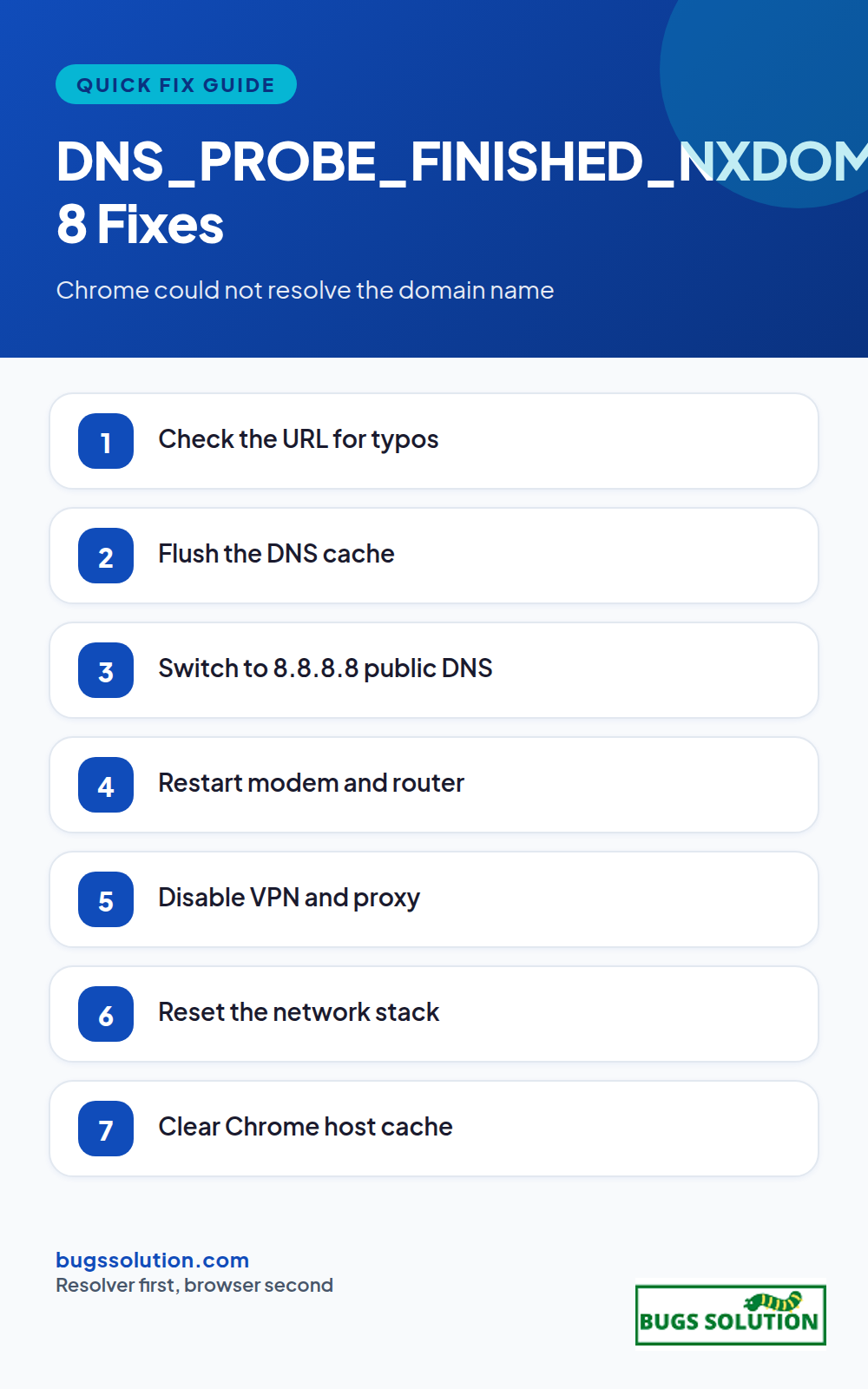
1. Check the URL
Look for typos, missing dots, or a wrong top-level domain. Try the site’s home page instead of a deep link, and try a different site to confirm general connectivity. If other sites load, DNS for that one name is the issue, not your whole connection.
Then reload the page. Stale entries are the single most common cause of NXDOMAIN on a machine that was working minutes ago.
3. Switch to a public DNS server
On Windows: Settings > Network & Internet > Wi-Fi (or Ethernet) > Hardware properties > DNS server assignment > Edit. Set it to Manual, enable IPv4, and enter:
Preferred: 8.8.8.8
Alternate: 8.8.4.4
Or use 1.1.1.1 and 1.0.0.1 from Cloudflare. On Mac: System Settings > Wi-Fi > Details > DNS, add the same addresses. Google’s Public DNS documentation covers the full procedure and the tradeoffs.
4. Restart the router and modem
Your router caches DNS results for every device on the network. Power-cycle modem then router, wait for lights to stabilize, and retest. A router-side cache outliving its TTL is a frequent cause of “one site broken, everything else fine” reports in a household. Microsoft’s ipconfig command reference documents every flag used in this guide.
5. Disable VPN, proxy, and antivirus web shield
VPNs and corporate proxies can return NXDOMAIN for names their blocklists reject, and some antivirus web shields intercept DNS quietly. Disconnect the VPN, turn off any proxy under Settings > Network & Internet > Proxy, and temporarily disable antivirus web filtering to test. If a VPN is permanent in your setup, VPN split tunneling keeps DNS traffic on a direct path.
6. Reset the network stack
In an elevated Command Prompt, run:
netsh winsock reset netsh int ip reset ipconfig /release ipconfig /renew ipconfig /flushdns
Restart, then retest. This clears corrupted Winsock entries that block resolution even when the adapter looks healthy.
7. Clear Chrome’s host cache and site data
Visit chrome://net-internals/#dns and clear the host cache. Then clear cookies and site data for the affected domain from the padlock icon in the address bar. A bad HSTS or cached redirect entry can keep failing after DNS itself is fixed.
8. Scan for malware and check the hosts file
Malware rewrites the Windows hosts file (C:\Windows\System32\drivers\etc\hosts) to blackhole domains. Open it in Notepad as administrator: legitimate files contain only comments and localhost entries. Remove anything else, save, and flush DNS again. Then run a full antivirus scan.
When the site is genuinely gone
If multiple devices on different networks all return NXDOMAIN for the same name, the domain may have expired or been taken down. Search for the site’s new address, or check the registrar’s status. There is no client-side fix for a domain that no longer exists.
Prevent repeat NXDOMAIN errors
Use a reliable public resolver instead of the default ISP one when ISP resolvers prove flaky, keep the router firmware current, and flush DNS after any VPN or proxy change. If errors cluster around one browser only, compare with a second browser; when Firefox works and Chrome does not, the fault is Chrome profile data, not the network. For a general routine that catches these small faults early, follow tips to avoid bugs and effective strategies.
Decide in 60 seconds where the fault sits
Before touching settings, run three quick checks and write down the results. First, try the same URL on your phone with Wi-Fi off (cellular data). If mobile data resolves the name, your local resolver or router cache is the problem. Second, try a different domain that normally works (for example a major news site). If every domain fails, this is not NXDOMAIN for one host; your resolver itself is down or blocking. Third, ping the domain from Command Prompt with ping example.com. A reply means DNS already worked and Chrome’s cache is the layer to clear instead.
These three checks map directly onto the fixes below: mobile works but desktop fails points at step 3 (public DNS) and step 4 (router reboot). Everything fails points at step 6 (network stack reset) or a router-wide outage. Only one domain fails after a clean flush usually means the name really is gone (step 8 territory) or a hosts-file entry is blackholing it.
Keep the results with the time stamp. DNS faults that return after every reboot usually trace to a router that rewrites its DHCP-provided DNS on each lease renewal; setting a static resolver on the machine (step 3) outlives that, while flushing alone does not.
Hey,
This is Namrata Shah and I am a professional blogger. I am a professional blogger since 4 years and have keen interest to research about different bugs like windows, software bugs, exceptions handling, programming bugs, and so on.
If your device shows Wi-Fi connected but no internet access, the break is between your router and the wider web, not between your device and the router. Work…
If you suspect your computer is hacked, disconnect it from the network, run a full antivirus scan, change your most important passwords from a different clean device, and…