ERR_CONNECTION_REFUSED in Chrome means the server actively refused the connection: nothing is listening on that port, or a firewall or proxy is rejecting the request. We start every diagnosis with who is sending the rejection, because that single answer cuts the fix list in half. Fix it by clearing browser data, disabling VPN or proxy, flushing DNS, checking the local firewall, and trying a different network. Most cases clear within five minutes.
What “connection refused” actually means
TCP connections need a server accepting traffic on a port. When Chrome sends SYN and gets RST back, you see ERR_CONNECTION_REFUSED. Unlike a timeout, which means silence, refusal is an explicit “no” from somewhere between you and the site: the host itself, a reverse proxy, a local firewall, or a VPN gateway blocking the port.
That “where is the no coming from” question is the same isolation method used throughout bug fixing tips and best practices: change one variable at a time until the failure moves or disappears.
Fixes in order
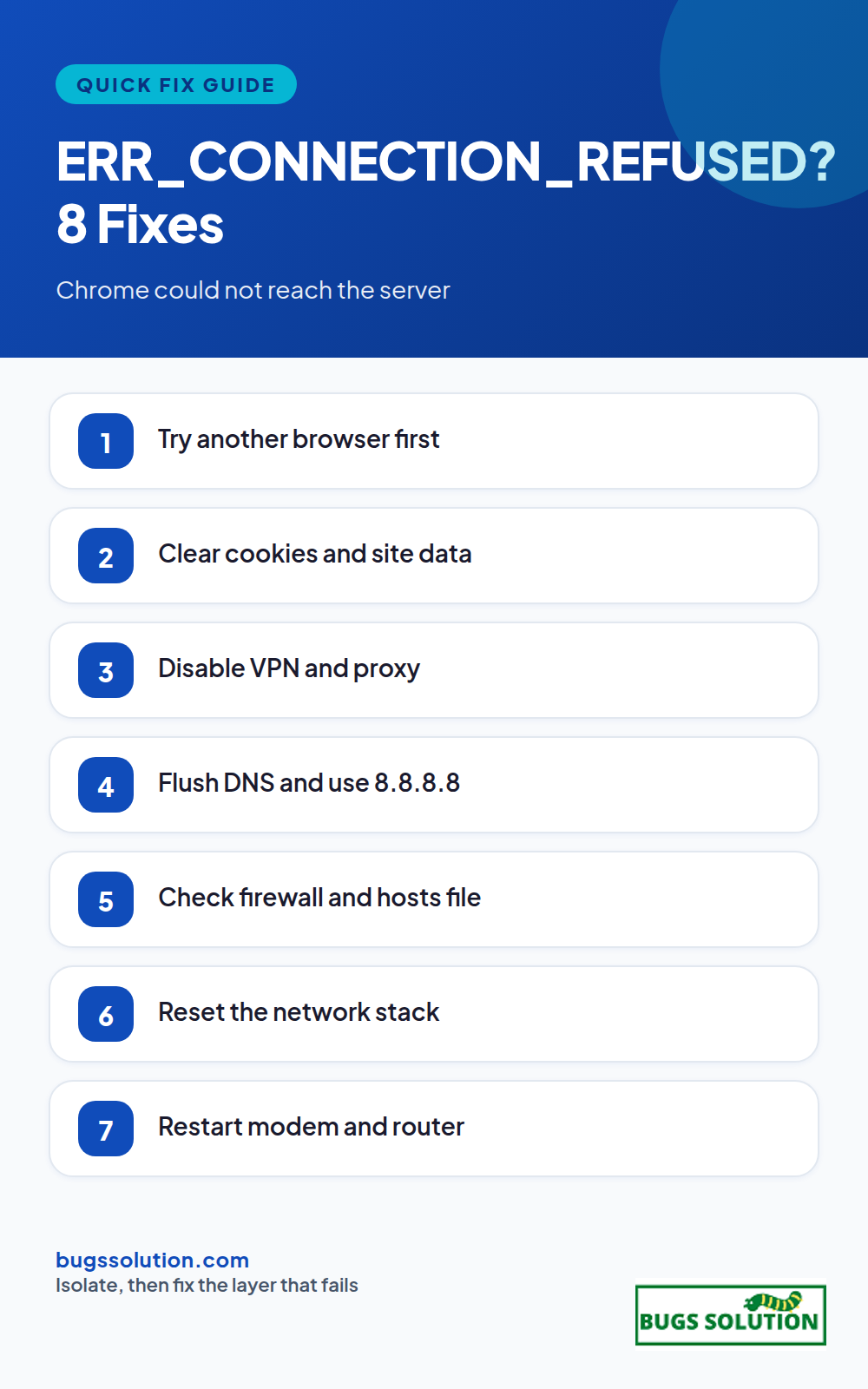
1. Confirm it is not the site
Try the same URL in Firefox or Edge, and try another site in Chrome. If every browser fails on one site, the server or a middlebox is at fault. If only Chrome fails on all sites, the problem is local to Chrome or the machine.
2. Clear cookies, cache, and site data for that domain
Click the padlock in the address bar > Delete data, or visit chrome://settings/siteData, search the domain, and remove it. Corrupt HSTS entries and stale session data can keep a working site refused after the server is healthy again.
3. Disable VPN, proxy, and antivirus web shield
Corporate proxies and VPN clients often refuse outbound connections to blocked ports or after their tunnel drops. Turn the VPN off, set Windows proxy to automatic or off (Settings > Network & Internet > Proxy), and temporarily disable antivirus HTTPS filtering. If the VPN is permanent, VPN split tunneling keeps browser traffic on a direct path.
4. Flush DNS and try a public resolver
Open an elevated Command Prompt:
ipconfig /flushdns ipconfig /registerdns
Then set DNS to 8.8.8.8 and 8.8.4.4 (or Cloudflare’s 1.1.1.1) under Settings > Network & Internet > Wi-Fi > Hardware properties. Microsoft’s ipconfig reference documents every flag used here.
5. Check the local firewall and hosts file
Windows Defender Firewall > Allow an app through firewall: ensure Chrome is allowed on private and public networks. Open C:\Windows\System32\drivers\etc\hosts as administrator and remove any lines that are not 127.0.0.1 localhost. Malware rewrites this file to refuse connections to specific domains.
6. Reset the network stack
In an elevated Command Prompt, run:
netsh winsock reset netsh int ip reset ipconfig /release ipconfig /renew
Restart, then retest. This clears corrupted Winsock LSP entries that intercept and refuse sockets before Chrome ever reaches the network.
7. Restart the router and modem
Power-cycle modem then router, wait for lights to stabilize, and retest on Wi-Fi and, if available, on a phone hotspot. If the hotspot works and home Wi-Fi does not, the router’s filtering or port rules are the culprit; check parental controls, guest network isolation, and any built-in firewall.
8. Reset Chrome net internals and profile
Visit chrome://net-internals/#dns and clear the host cache, then chrome://net-internals/#sockets and flush socket pools. If the error persists only in one profile, create a new Chrome profile (Settings > You and Google > Manage other people) and test there. Profile-level extension or policy interference is common on managed machines.
When the server is the problem
Cloudflare’s error reference documents which upstream errors and ports matter when the refusal originates upstream rather than on your machine.
If the site is refused for every browser, every device, and every network, the server is down, the port is closed, or the domain’s hosting has lapsed. Check the provider’s status page, try the site again in an hour, or contact the site owner. Client-side fixes cannot open a port that the server is not listening on.
Prevent repeat refusals
Keep VPN and proxy settings under control after every network change, flush DNS when switching networks, and avoid installing browser extensions that intercept HTTPS traffic without a clear reason. A short log of refused-connection incidents, including time and network, will show whether the cause follows the machine or the network. That habit is the core of tips to avoid bugs and effective strategies.
Locate the refusal before changing settings
Connection refused is an explicit rejection, not a timeout, so the fastest path is to find who is sending the rejection. Open Command Prompt and run curl -v https://example.com (replace the domain). If curl succeeds while Chrome fails, the fault is inside Chrome or its profile (steps 2 and 8). If curl is also refused, run netstat -ano | findstr :443 while retrying to see whether anything local owns the port, then test the same URL from a phone on cellular data. Phone works, PC refuses: local firewall, proxy, or VPN (steps 3 and 5). Both refuse: the server or an upstream filter is closing the port (step 7 and the status-page check).
Write the three results down before you change a setting. Refusals that follow you across networks are account or server side; refusals that stay on one machine are profile or firewall side. Mixing the two is how people end up resetting a network stack for a Chrome profile problem.
One caution: some corporate proxies return refused rather than a block page, so if you are on a work laptop, confirm with IT before disabling the proxy in step 3. Disabling a managed proxy can trip policy alerts even when it fixes the page.
Hey,
This is Namrata Shah and I am a professional blogger. I am a professional blogger since 4 years and have keen interest to research about different bugs like windows, software bugs, exceptions handling, programming bugs, and so on.