No sound on Windows 11 is almost always an output-device or driver problem: the wrong device is set as default, a muted application, or a corrupted audio driver. We split system sound from app sound first; that one test tells you whether to touch drivers or only the mixer. Check the output device, unmute the app, run the audio troubleshooter, and reinstall the audio driver. Those four steps restore sound in most cases within five minutes.
Why sound disappears on Windows 11
Windows 11 routes audio through a default output device, per-app volume sliders, and the audio driver stack. A Windows update that changes the default device, a muted Chrome tab, or a driver that fails to reload after sleep all produce “no sound” without any hardware fault. The speaker icon in the taskbar shows system volume; it does not show whether a specific app is muted or the wrong output is selected.
That distinction between system-level and app-level state is the same layering idea covered in bug fixing tips and best practices: identify the layer before changing settings.
Fixes in order
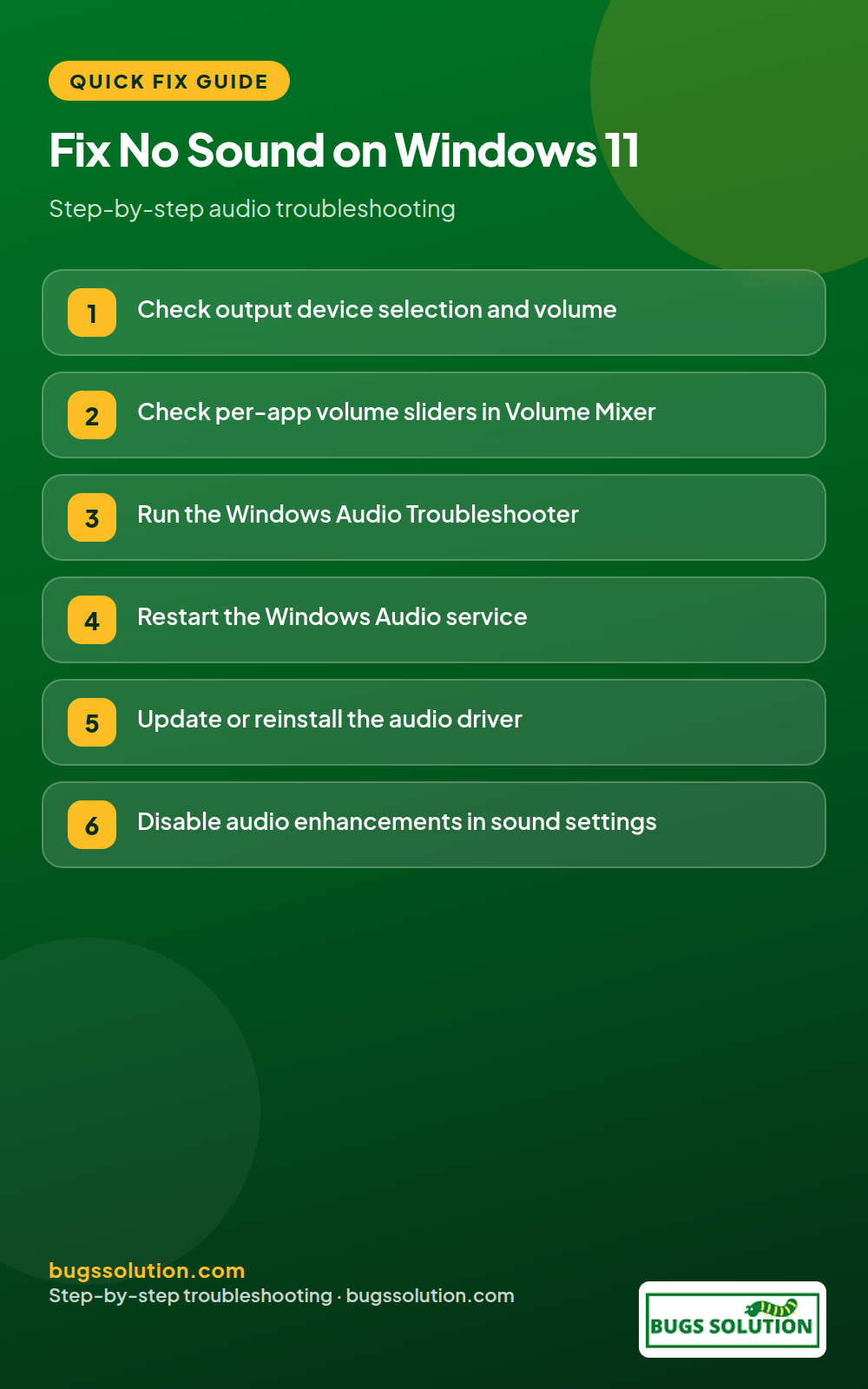
1. Check the output device and system volume
Click the speaker icon in the taskbar, open the volume mixer, and confirm the correct output is selected (speaker, headphones, HDMI, or Bluetooth device). Raise the master volume and check that mute is off. If you recently plugged in HDMI or Bluetooth, Windows may have switched output automatically.
2. Check per-app volume in the mixer
Settings > System > Sound > Volume mixer. Confirm the app you are using (Chrome, Spotify, Zoom) is not muted and its slider is up. A single muted app looks exactly like “no sound” when the rest of the system plays fine.
3. Run the audio troubleshooter
Settings > System > Troubleshoot > Other troubleshooters > Playing audio. It detects muted devices, wrong defaults, and stopped services, then applies the fix. Run it after the manual checks above so it starts from a known state.
4. Restart the Windows Audio service
Press Win + R, type services.msc, find Windows Audio, and ensure Startup type is Automatic. Right-click and Restart. Also restart Windows Audio Endpoint Builder if it is stopped; both services must run for any output to work.
5. Update or reinstall the audio driver
Device Manager > Sound, video and game controllers. Right-click your audio device (Realtek, Intel, NVIDIA, or similar) and select Update driver > Search automatically. If that fails, Uninstall device, restart, and Windows reinstalls the driver. For Realtek specifically, the motherboard or laptop vendor’s support page often has a newer package than Windows Update.
6. Disable audio enhancements
Settings > System > Sound > More sound settings. Under Playback, select your output device, Properties > Enhancements, and check Disable all enhancements. Corrupted enhancement DLLs are a common cause of silent output after a Windows feature update.
7. Check exclusive mode and sample rate
In the same Properties dialog, under Advanced, uncheck “Allow applications to take exclusive control of this device” and try 16-bit, 44100 Hz or 48000 Hz. Exclusive mode lets one app lock the device; when that app exits badly, the device can remain locked and silent for everything else.
8. Test with another output and another app
Plug in headphones or a different speaker and test. If sound works on one device and not another, the output path is the issue, not the driver. If sound works in Notepad but not in Chrome, the browser’s audio stack or a site permission is the issue; reset site permissions under chrome://settings/content/sound.
When the hardware is actually failing
Microsoft’s sound troubleshooting page documents every built-in step above in order, and the audio driver update guide covers the vendor-package path when Windows Update finds nothing.
If every output device is silent, the troubleshooter finds nothing, and the audio device shows a yellow triangle with code 10 or code 43 in Device Manager after a full driver reinstall, the codec or jack may be dead. Try a USB audio interface or Bluetooth headphones as an external test; if those work, the onboard audio has failed and a hardware repair or dongle is the fix. Laptop users should also check that the BIOS has not disabled onboard audio after a reset.
Prevent the next silent session
Keep audio drivers current, avoid forcing shutdowns while audio apps are active, and re-check the default output after every Windows feature update. Log each silence incident with the time and the fix that worked; a pattern that follows updates points to a driver that needs a vendor package rather than Windows Update. The same habit is part of tips to avoid bugs and effective strategies, and for networked audio or streaming, VPN split tunneling keeps media traffic off a blocking tunnel.
Split system sound from app sound in one test
Play the Windows notification sound (Settings > System > Sound > More sound settings > Playback, right-click the default device > Test) and then play audio in the app that is silent. Both silent: output device, driver, or service (steps 1 through 6). Notification works but the app is silent: per-app mixer, exclusive mode, or a site permission inside the app (steps 2, 7, and the browser check in step 8). That single split removes half the settings from consideration before you change anything.
When you reinstall a driver, note whether Windows rolls back automatically or leaves you on the generic High Definition Audio device. The generic driver restores basic output but often disables jacks and enhancements; if sound returns quality-poor, the vendor package from the laptop or motherboard support page is the finish line, not a optional extra.
After any fix, set a reminder to re-check the default output after the next Windows feature update. Feature updates have reassigned the default device to HDMI or a Bluetooth headset often enough that “no sound” after patch Tuesday is usually a routing change, not hardware failure.