
Bluetooth not working on Windows 11 is usually a driver, pairing, or radio-state problem, not a dead adapter. We order the fixes below from the fastest reversible check to the deepest driver reset, so you can stop the moment sound or pairing returns. Run the Bluetooth troubleshooter, restart the Bluetooth service, re-pair the device, and update or reinstall the driver. Those four steps resolve most Bluetooth failures in under ten minutes.
Why Bluetooth stops working on Windows 11
Windows 11 manages Bluetooth through a radio driver, a pairing store, and the Bluetooth Support Service. When any of those three breaks, from a Windows update that replaced the driver, a corrupted pairing entry, or a service that failed to start, devices disappear from the settings page or refuse to connect.
The same pattern of “one subsystem, three failure points” appears in our non-obvious crash causes analysis: find which layer is broken before replacing hardware.
Fixes in order
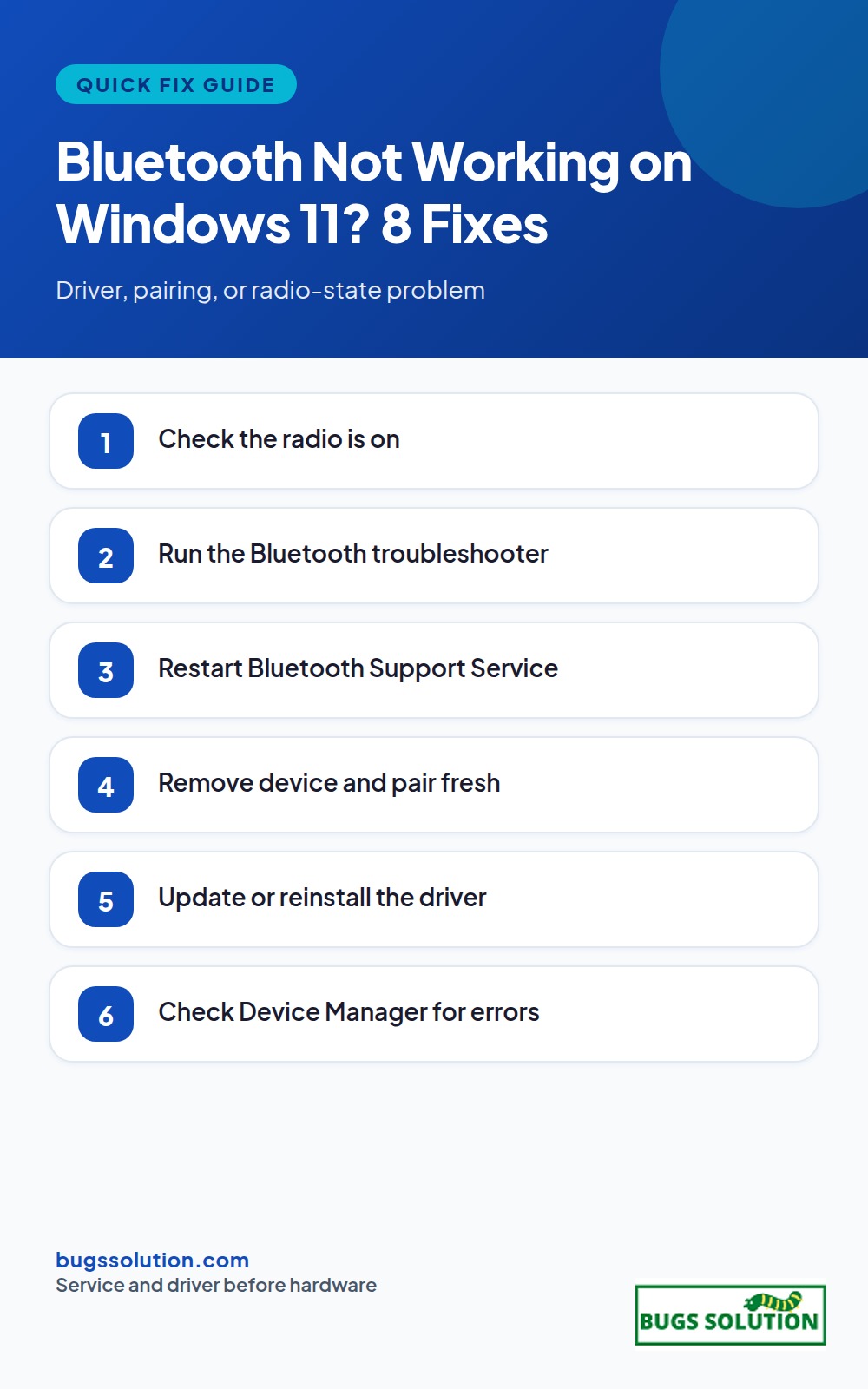
1. Check the radio is actually on
Settings > Bluetooth & devices: toggle Bluetooth off and on. On laptops, look for a physical switch or a function key (often Fn + F5 or similar) that may have disabled the radio. Airplane mode (Settings > Network & internet > Airplane mode) also kills Bluetooth; turn it off if enabled.
2. Run the Bluetooth troubleshooter
Settings > System > Troubleshoot > Other troubleshooters > Bluetooth. It restarts the service, clears stuck pairing state, and re-enables the device in Device Manager. Run it before deep manual fixes so it has a clean chance to clear simple faults.
3. Restart the Bluetooth Support Service
Press Win + R, type services.msc, find Bluetooth Support Service, and set Startup type to Automatic. Restart it. If the service was disabled or set to manual and failed to start, no amount of re-pairing will help until it runs again.
4. Remove the device and pair fresh
Settings > Bluetooth & devices > Devices. Remove the failing device, power-cycle it, then Add device > Bluetooth. Old pairing keys that no longer match cause “paired but not connected” states that survive restarts.
5. Update or reinstall the Bluetooth driver
Open Device Manager (Win + X > Device Manager), expand Bluetooth, right-click your adapter, and select Update driver > Search automatically. If that fails, Uninstall device (check “delete the driver software” if offered), restart, and Windows will reinstall. For Intel, Realtek, or Qualcomm adapters, the manufacturer’s support site often ships a newer package than Windows Update.
6. Check Device Manager for errors
In Device Manager, look for a yellow triangle on the Bluetooth adapter or under Human Interface Devices. A code 10 or code 43 means the driver loaded but the hardware failed to start; a full driver reinstall (step 5) clears most of those. Also check that the Bluetooth adapter has not been disabled under View > Show hidden devices.
7. Run the hardware and devices troubleshooter
Open Command Prompt as administrator and run:
msdt.exe /id DeviceDiagnostic
This legacy troubleshooter still catches driver conflicts and resource issues that the modern Settings troubleshooter misses on some machines.
8. Reset Bluetooth via PowerShell (advanced)
If pairing remains broken after a driver reinstall, remove the Bluetooth device stack:
Get-PnpDevice -Class Bluetooth | Disable-PnpDevice -Confirm:$false
Get-PnpDevice -Class Bluetooth | Enable-PnpDevice -Confirm:$false
Then re-pair. This forces Windows to rebuild the device stack without a full driver wipe.
When the hardware is actually failing
Microsoft’s Bluetooth troubleshooting page covers the built-in tools and driver reinstall steps, and the Bluetooth driver update guide walks through the vendor-driver path when Windows Update finds nothing.
If the adapter is missing entirely from Device Manager, is listed as “Unknown device,” or shows code 43 after a driver reinstall, the radio may be dead or disconnected internally. On desktops, try the card in another PCIe slot or a USB Bluetooth dongle as a test. On laptops, a BIOS/UEFI reset or a hardware service visit may be required. Error lights on the adapter itself, if present, map to specific fault codes in the manufacturer’s manual.
Prevent the next Bluetooth failure
Keep drivers current through Windows Update and the adapter vendor’s site, avoid forcing shutdowns while devices are pairing, and remove devices you no longer use so the pairing list stays short. Log each failure with the time and the fix that worked; repeating patterns usually point to a driver that a specific update keeps breaking. The same discipline underpins tips to avoid bugs and effective strategies, and a quick check against connection quality basics rules out interference before you blame the driver.
Narrow the fault to radio, driver, or device
Three questions separate the layers. Does Bluetooth appear in Quick Settings at all? If the toggle is missing or greyed out, you are at radio or driver level (steps 1, 5, and 6), not pairing. Does the adapter appear in Device Manager under Bluetooth with no yellow triangle? If it is missing there too, Windows is not seeing the hardware: reseat or reinstall the driver before any pairing work. Does the adapter look healthy but the specific device will not connect? That is pairing state or the peripheral’s own battery and range (steps 4 and the device-side checks).
Run the checks in that order and you avoid re-pairing a headset for twenty minutes when the real issue is that airplane mode disabled the radio in step 1. When you re-pair, put the peripheral in pairing mode before opening the Add device dialog; Windows times out of discovery faster than most people expect, and a timeout looks exactly like a dead adapter.
Battery-saving settings are a common silent cause on laptops: Device Manager > Bluetooth adapter > Power Management > uncheck “Allow the computer to turn off this device to save power” if dropouts appear only after the machine idles. Log which step cleared the fault; repeat failures after the same Windows update point at a driver that needs the vendor package rather than Windows Update.